IncidentHub HaloPSA Integration - Outage and Client Information in HaloPSA Tickets


Contextual Outage Notifications as Halo Tickets
MSPs need to stay abreast of vendor outages affecting their clients. If the clients are using IncidentHub's per-client branded status pages which track their vendor status, that takes care of the client communication. However, the MSP themselves still have to stay on top of the situation to keep clients updated.
Back in July 2026 we announced per-client status pages (all managed from one IncidentHub account). The HaloPSA integration complements that feature by creating a ticket in HaloPSA when there is an outage. It also adds contextual information in the ticket about which of your clients are affected. Component filters are automatically applied to the ticket.
This is available on the IncidentHub Multi-Client plan.
- Contextual Outage Notifications as Halo Tickets
- Why HaloPSA
- Who This Is For
- How the Ticket Works
- Per-Client Status Pages and the Client List
- Setting It Up
- Security
- What This Integration Does Not Do, Yet
Why HaloPSA
HaloPSA is a professional services automation platform - tickets, time logging, assets and billing for MSPs with multiple clients.
Halo came first because it was the PSA we could easily build against. HaloPSA offers a 30-day trial with all features and modules included, no credit card and no sales call, and its REST API is documented publicly. Halo's own documentation states that the Halo web application is driven entirely from the same API, which means anything you can do in the application should be reachable from an integration.
The per-client status pages feature was a request from an MSP customer, and this integration complements it.
Other PSAs are on our roadmap.
Who This Is For
MSPs and IT teams running HaloPSA who already monitor vendors in IncidentHub.
If you are a single-company IT team using Halo as your service desk, this works the same way. The ticket names clients only if you have per-client status pages configured. A single-company team usually has none, so you get the outage ticket without a client list. That is useful as well - the outage data is in the queue, with the vendor details, the affected components and the start time. In short, the integration works whether you have multiple clients or not.
If you have set up per-client status pages, the ticket also includes the status pages (clients) who are configured in IncidentHub as using the affected vendor.
How the Ticket Works
You can add HaloPSA as a notification channel in IncidentHub, the same as Slack, Teams, PagerDuty or a webhook.
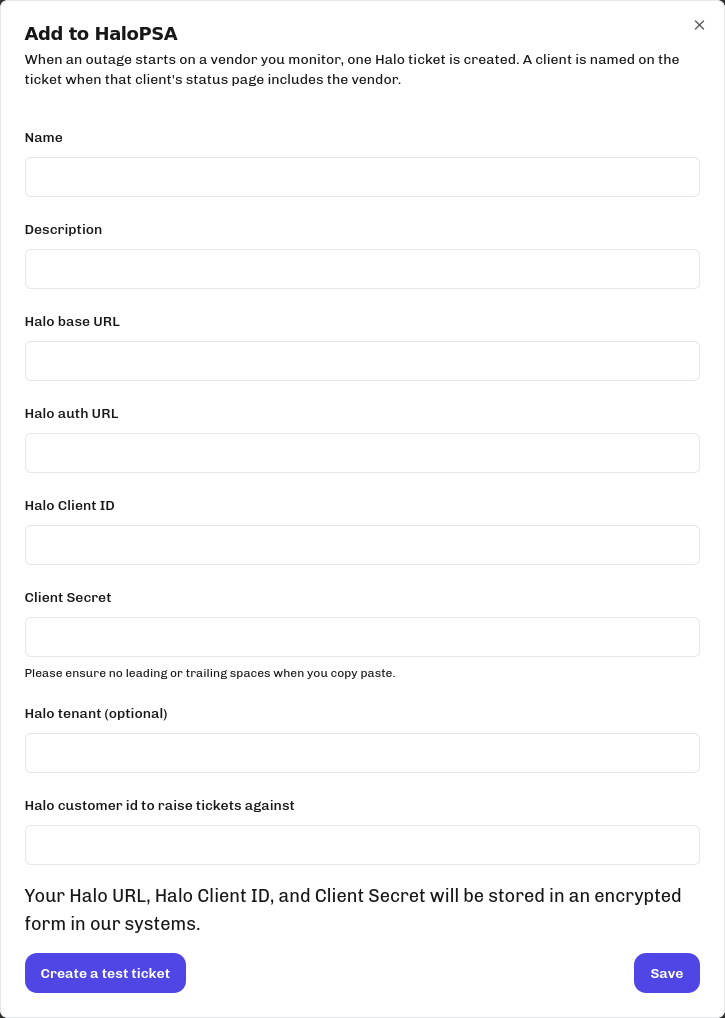
When an outage starts on a vendor in your monitored list, each HaloPSA channel creates one ticket. The filtering is the same the rest of IncidentHub uses, so a ticket is created only for vendors and components you have chosen to watch.
You can create a test ticket to see how it works before you save the integration.

Before you create the integration, it is worth knowing these three things:
- Tickets are created at the start of an outage only. Updates and resolution do not clutter your ticket queue.
- The ticket carries zero billable time and does not fire your own Halo automations, so it will not trigger a workflow you have built for client-logged tickets.
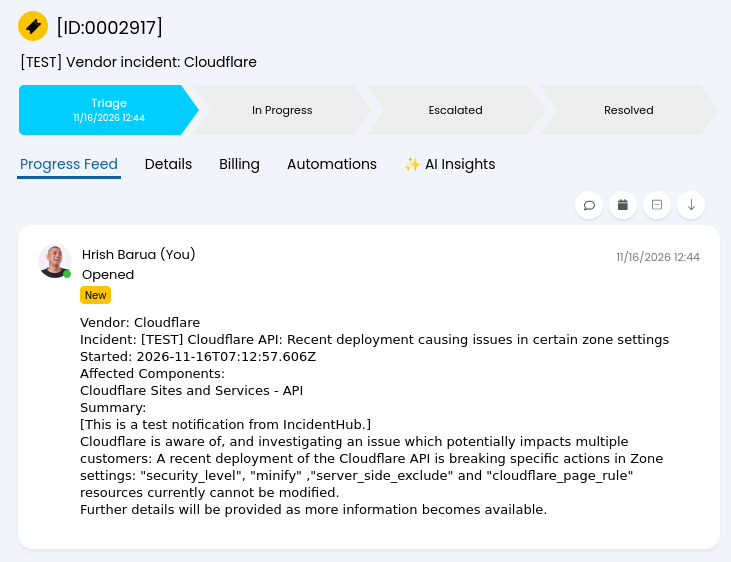
- You choose which Halo customer the ticket is raised against. A vendor outage is not about one client, so the ticket is filed against a single customer record you pick, usually your own company or a record you create for the purpose. Test tickets are prefixed
[TEST]in the subject so they are easy to find and delete.
Per-Client Status Pages and the Client List
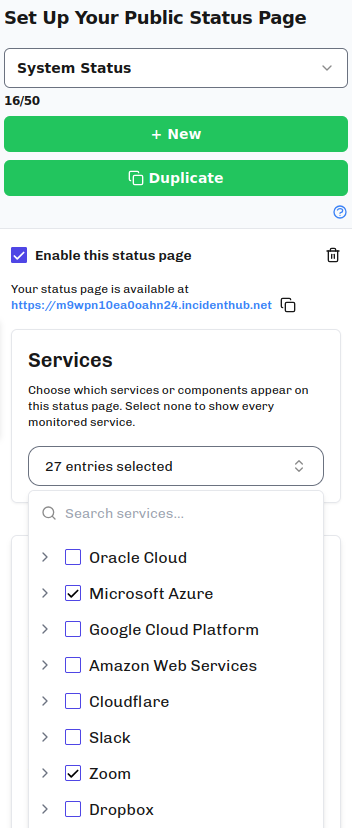
IncidentHub's per-client status pages let you create one page per client and pick which of your monitored services and components appear on it. This filtering came from an MSP customer's request. An MSP's monitored list is the union of every client's stack whereas any one client only cares about their own.
The Halo ticket reads from the same configuration. If you have a status page configured for a client and the affected vendor is on it, that client is named in the ticket:
Example:
Clients configured in IncidentHub as using Microsoft 365:
- Acme Manufacturing
- Bellweather Legal
- Corvid Logistics
Note that the ticket client list reflects the status page names of the clients you have added to IncidentHub. It does not read your Halo client list.
If you have no per-client pages configured, the ticket is still created and the client section is left out.
The practical effect is that the integration works when you add the channel, and becomes more useful as you configure client pages. You do not have to set up fifty pages before you start seeing any value.
Setting It Up
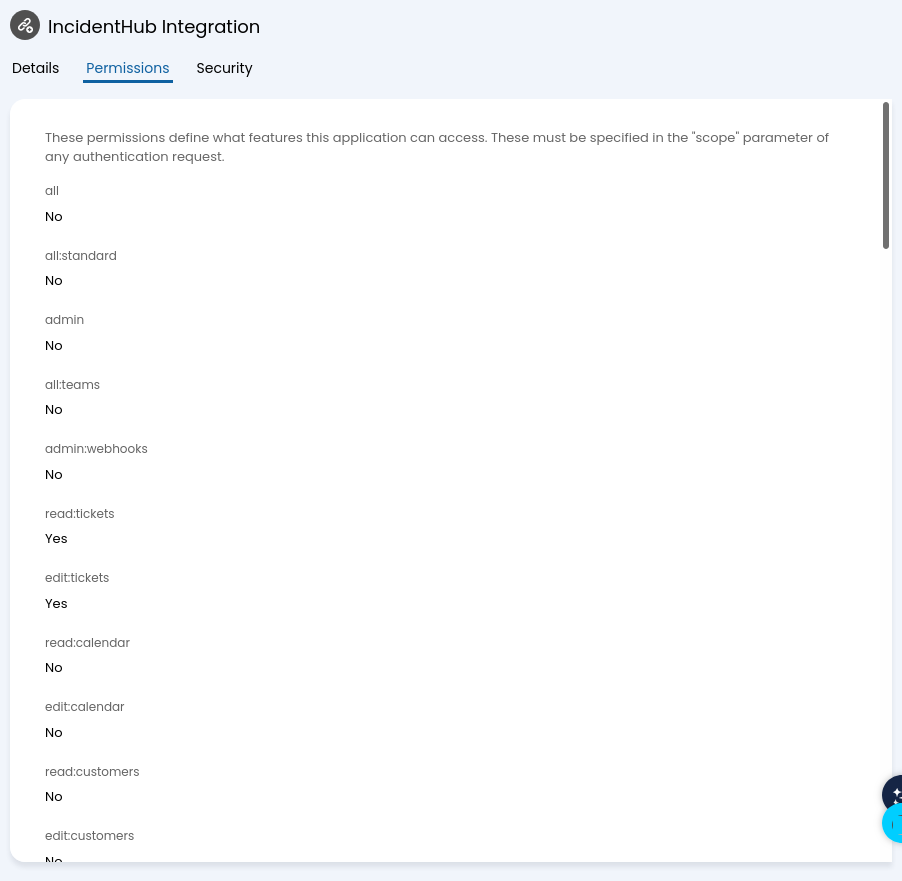
In Halo, create an API application under Configuration > Integrations > Halo API, with the authentication method set to Client ID and Secret (Services) and the login type set to Agent. Copy the client ID, the client secret and your Halo URLs. You also need to set two permissions: read:tickets and edit:tickets.
In IncidentHub, add a HaloPSA channel, paste those values, pick the Halo customer the tickets should be raised against, and click Create a test ticket before you save. Creating a test ticket is also available after you create the integration, so you can verify the integration later.
The full steps, with screenshots of each Halo screen, are in the integration documentation.
Security
IncidentHub stores your Halo client id and secret in an encrypted form in its database. All data is encrypted at rest and in transit. You can delete your Halo integration at any time and the client id and the secret are deleted from our database.
Halo API permissions are capped by the permissions of the agent you authenticate as, so an agent with no suitable role will fail even when the application permissions look right. The channel cannot be edited after it is saved, so rotating a Halo client secret means deleting the channel and adding it again.
IncidentHub asks for only the following permissions:
- read:tickets
- edit:tickets
What This Integration Does Not Do, Yet
There is no severity filter. IncidentHub does not filter out outages by severity in this integration. Every outage on a vendor you monitor creates a ticket. Supporting this is on our roadmap.
IncidentHub does not read your Halo client list. You create per-client status pages yourself. Importing clients and sites from Halo so the pages build themselves is the next piece of work on this integration.
IncidentHub does not annotate tickets your clients log. A ticket logged during a Microsoft 365 outage does not get a note saying Microsoft 365 is down. Without reading the ticket text there is no way to tell whether the two are related, and a note on an unrelated ticket is worse than no note, so this is deliberately left out till there is a way to do it that does not add noise.
Halo is not the source of truth for which vendors your clients use. That mapping lives in IncidentHub, in your per-client status page configuration, so this is something you have to do yourself.
Keep watching this space for more updates to IncidentHub.
IncidentHub is not affiliated with any of the services and vendors mentioned in this article. All logos and company names are trademarks or registered trademarks of their respective holders.
This article was first published on the IncidentHub blog.
You might also like: